Quick start
This guide follows a shortest path: log in → select a project → connect a data source → develop an API → test → publish → create a credential → authorize → call. Each step corresponds to a real menu in the product.
1. Log in and select a project
Open the frontend address (locally http://localhost:7001) and log in with the account assigned by your administrator.
- The login password is encrypted by the frontend with an asymmetric algorithm before transmission; the server stores only the BCrypt hash.
- After a successful login you enter project selection: you can enter an existing project or create a new one.
- All business data is isolated by project; after login, API requests automatically carry
X-Project-Id.
Creating a project requires:
| Field | Description |
|---|---|
| Project name | Used for display in the project switcher |
| API prefix | Unique across the platform; case and leading/trailing slashes are ignored when comparing |
| Project description | Optional |
After a project is created, the dev development environment and the production environment are initialized automatically, and the default execution service is bound.
2. Connect a data source
Go to Data sources, click New, select a type, fill in the connection information, then test the connection before saving.
- Select a data source type, for example MySQL, PostgreSQL, DM or ElasticSearch.
- Fill in the host, port, database name, account and password.
- Configure the connection pool as needed; leave it empty to use the platform defaults.
- After saving, you can expand the metadata tree to browse schemas, tables and fields, and preview data on the read-only query page.
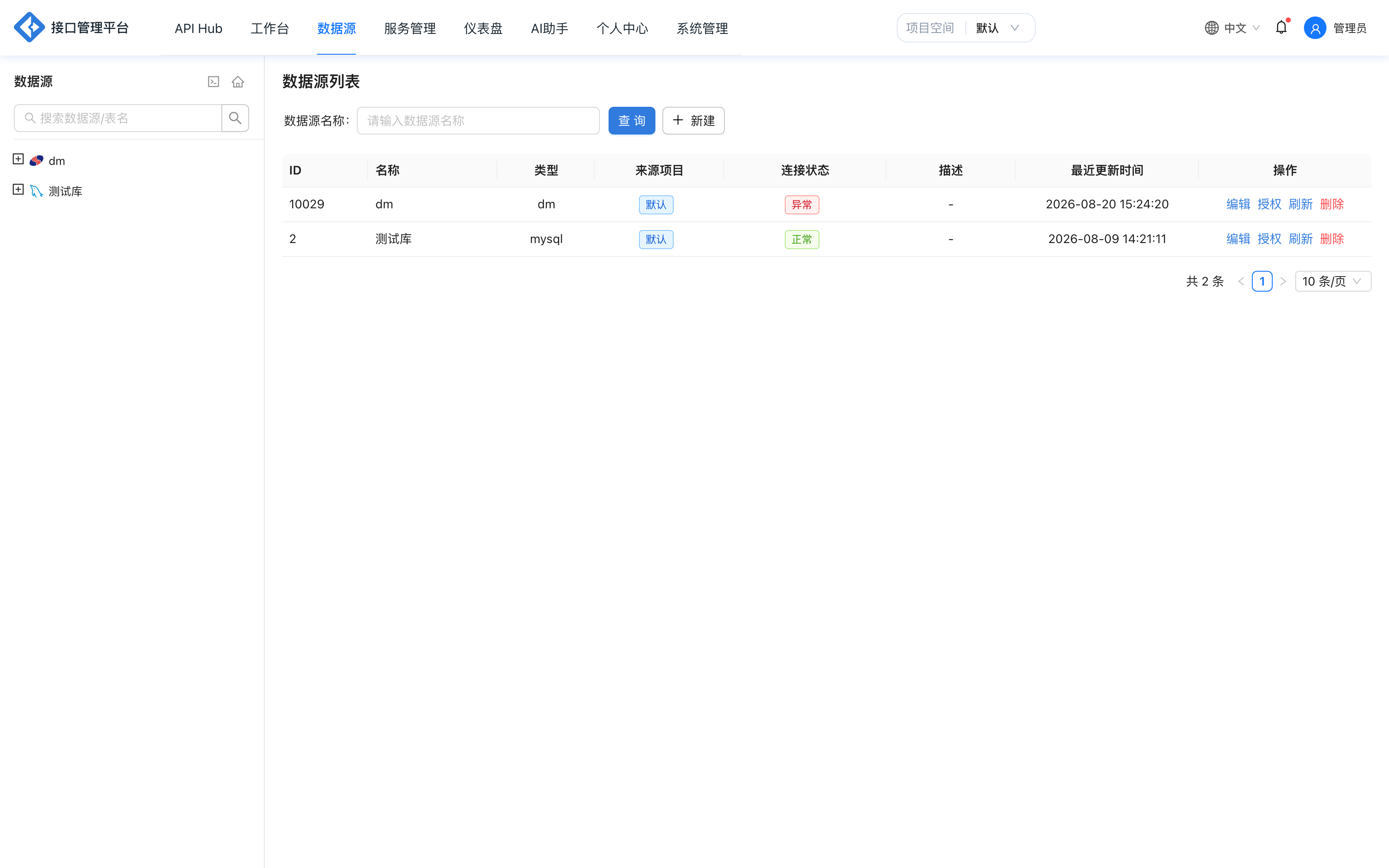
11 SQL data sources and 5 NoSQL / new-type data sources are supported. See Data source management for details.
3. Create your first API
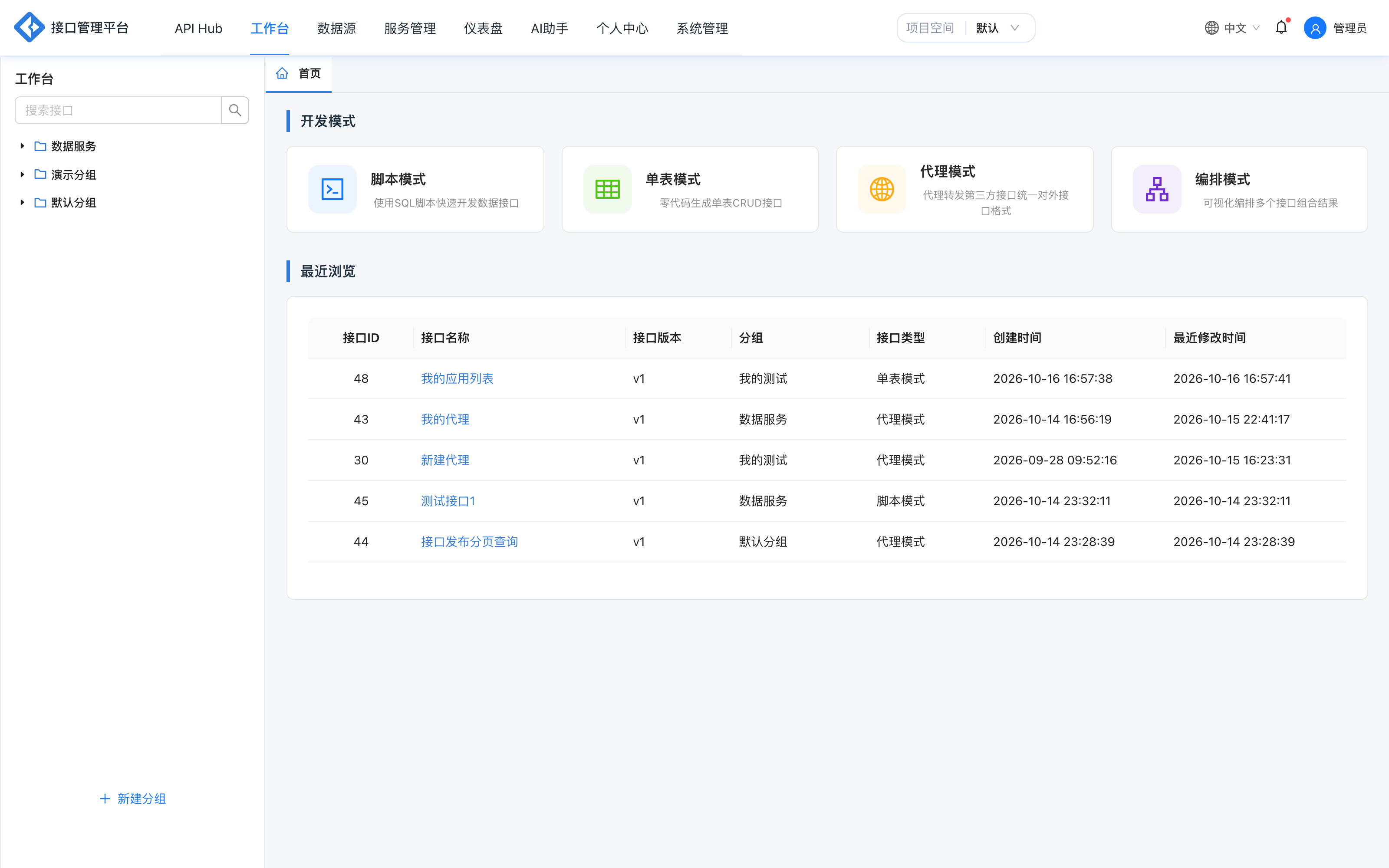
Go to the Workbench and click a development mode:
| Mode | Suitable for |
|---|---|
| Script mode | Handwritten SQL, dynamic conditions and batch operations |
| Single table mode | Single-table queries with zero-code field selection |
| Proxy mode | Wrapping third-party HTTP APIs |
| Orchestration mode | Aggregating multiple published APIs and processing data |
Using script mode as an example:
- Select a data source and schema.
- Write SQL;
#{}prepared parameters and dynamic tags such as<if>are supported.
SELECT id, order_no, amount, status, created_at
FROM orders
WHERE 1 = 1
<if test="status != null">
  AND status = #{status}
</if>
<if test="startTime != null">
  AND created_at >= #{startTime}
</if>
ORDER BY created_at DESC
- Click Parse to automatically extract request parameters and response fields; you can also add them manually.
- In the right panel, fill in basic information such as the API name, API path, request method and authentication method.
For a complete description of the fields in an API definition, see API definition.
4. Test online
Click Test to open the test panel:
- Request parameters are automatically distributed into the Query, Body and Header tabs according to their location.
- After sending, the response body, HTTP status, elapsed time and result size are displayed.
- All four modes — script, single table, proxy and orchestration — support online testing.
After the test passes, you can save the request as a test case for later regression. If there is no real data during development, you can also configure Mock data.
5. Save and publish
- A new API must be saved first; otherwise the Publish button is unavailable.
- Click Publish and select the target environment (for example
devor production). - Publishing generates a release snapshot for that environment in
base_api_release, and the API enters the published state. - To display the API externally, set the permission level to Public; only APIs that are "public + production + online" appear in API Hub.
An API that is online cannot be edited directly; take it offline first, otherwise 43002 is returned. If the content is modified again after publishing, it must be saved and published again before it can go online.
6. Create a calling credential
Go to Personal center → Credentials and click New:
| Field | Description |
|---|---|
| AppCode | Credential code, unique; used in the MCP endpoint path |
| AppKey | Passed via X-AppKey for simple authentication |
| AppSecret | Used as the HMAC key for signature authentication |
| Scope | Project level (APIs in this project) or API level (authorized APIs only) |
| Access IP control | Can restrict the credential to calls from allowlisted IPs |
| Enable MCP | When enabled, the credential can be connected as an MCP Server |
Keep the AppSecret safe after creation.
7. Authorize APIs
Go to Service management → API list, find the target API, click Authorize, and select one or more calling credentials in the dialog.
- Project-level credentials can access eligible APIs within the project.
- API-level credentials can only access APIs that are explicitly authorized.
- Clear the checkbox to revoke authorization.
8. Call the API
Open APIs are accessed through the gateway. The local gateway address is http://localhost:9600, and the actual path consists of "environment prefix + project prefix + API path".
Simple authentication
curl "http://localhost:9600/api/demo/orders/list?status=paid" \
  -H "X-AppKey: ak_xxxxxxxxxxxxxxxx"
Signature authentication
Signature authentication requires X-AppKey, X-Timestamp, X-Nonce and X-Sign, and optionally X-Algorithm (SM3 by default, HmacSHA256 supported). The signature string in the current version also includes digests of the query string and request body, so always follow the signature authentication guide; do not implement only the legacy three-step concatenation.
MCP access
After MCP is enabled for a credential, POST /mcp/{AppCode} can be used as the MCP Server address, authenticated with X-AppKey, supporting initialize, tools/list and tools/call. See MCP service access for details.
Common failure points
| Symptom | Check first |
|---|---|
40001 API not found or offline | Whether the path includes the full environment/project prefix, and whether the API is published and online |
40002 authentication failed | Whether the credential is authorized for the API and whether the scope matches |
40008 missing AppKey | Whether the request header carries X-AppKey |
40013 signature failed | Whether the signature string, request body bytes and raw query string exactly match the content sent |
40021 subscription invalid | Whether you have subscribed, and whether the subscription has expired or been frozen |
40023 daily quota exceeded | Whether today's call volume has reached the subscription limit |
41006 API path already in use | Whether the path is duplicated under the same environment and request method |
For more error codes, see Response structure and error codes; for other questions, see the FAQ.